How to Track ROAS in GA4 for UK Health and Wellbeing Brands

Calculating paid media revenue as a ratio of ad spend
Return on ad spend (ROAS) is an essential metric for any paid media campaign. It tells you how much money you’re making for every pound you spend on advertising, which also helps you figure out whether your online marketing campaigns are working effectively.
Most paid media agencies and marketing teams use Google Analytics 4 (GA4) to measure the performance of digital advertising for health and wellbeing brands. But while GA4 shows you ROAS for Google Ads with native integration, it doesn’t offer the same functionality for other traffic sources – at least, not out of the box.
Instead, you need to follow a few simple steps to set up a custom calculated metric that you can use across source/medium pairs. Then you’ll be able to create a table report that shows the revenue and cost for each one. That ratio will be your paid media ROAS.
Each month, we send our clients a clear, transparent paid media report that includes ROAS for search and social ads. That way, you can see the success we deliver and spot further opportunities to grow your business with professional digital marketing.
Contact us today to find out how we can deliver seamless paid media advertising services that help you achieve the highest possible ROAS.
How to set up ROAS tracking in GA4 in 3 simple steps
1) Create a custom calculated metric
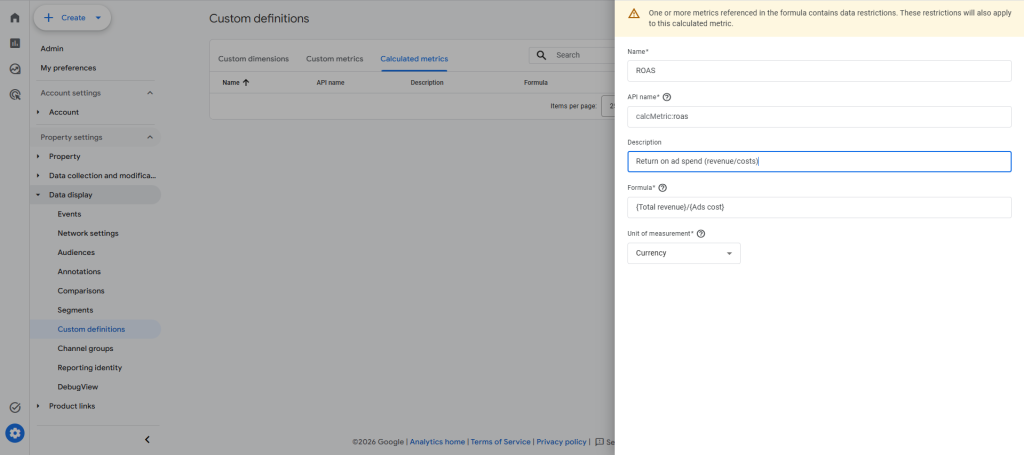
Your first step in how to track ROAS in GA4 is to create a custom calculated metric.
The formula for paid media ROAS is:
ROAS = Total revenue / Ad cost
To set this up in GA4:
- Click ⚙️ Admin in the left-hand navigation pane
- Go to Property Settings and click ⮞ Data Display
- Select Custom definitions
- Choose the Calculated metrics tab
- Click the blue Create calculated metric button
- Give your new calculation the following details:
- Name: ROAS
- API name: calcMetric:roas
- Description: Input whatever description you like
- Formula: {Total revenue}/{Ads cost}
- Unit of measurement: Currency
Google Analytics might format ROAS as a decimal value rather than a true ratio. But your calculation will still be valid.
2) Import cost data
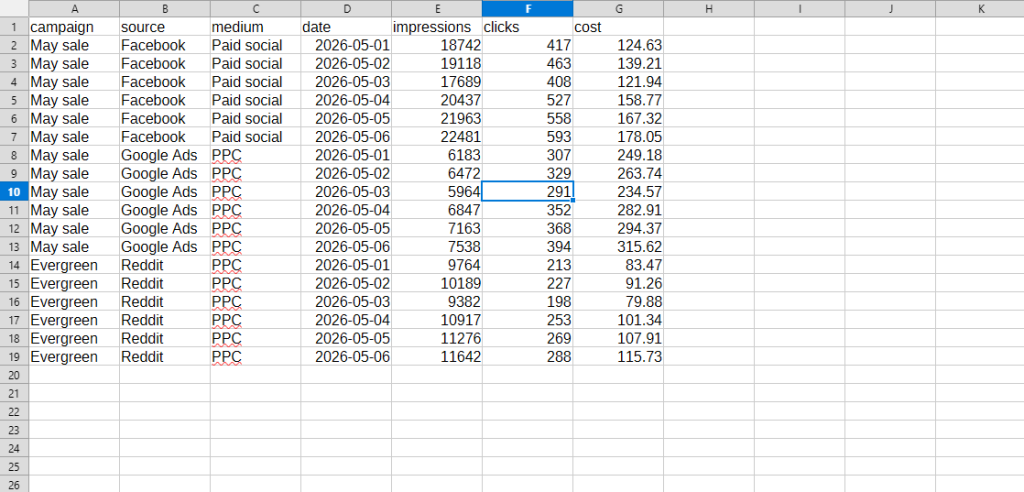
GA4 already displays cost data and ROAS for Google Ads, including Performance Max. But for non-Google sources like paid social ads on Meta, you need to import that data yourself.
That means you need to create a CSV file with the following fields:
- Campaign: The name of your campaign
- Source: Facebook, Instagram, Reddit, etc.
- Medium: Pay per click (PPC), Programmatic, etc.
- Date: The cells must be formatted as ‘Date’ using the ‘Format Cells’ function and displayed as YYYY-MM-DD
- Cost: How much you spend on ads for that source/medium pair on that date
Once you have that CSV file:
- Go to ⚙️ Admin in GA4
- Under Property settings click ⮞ Data collection and modification
- Choose Data import
- Upload your CSV file
- Map your fields, such as ‘source’ to ‘session source’ and ‘cost’ to ‘ads cost’ (you must ensure source, medium, campaign and date exactly match your UTM parameters, otherwise cost and revenue won’t join correctly)
- Save and process your import
You don’t need to go through this whole process every time you want to add new cost data. If you create your CSV file using a Google Sheet or an API, you can just update it with your new cost data and it’ll appear in GA4 the next time it refreshes.
3) Generate reports with ROAS
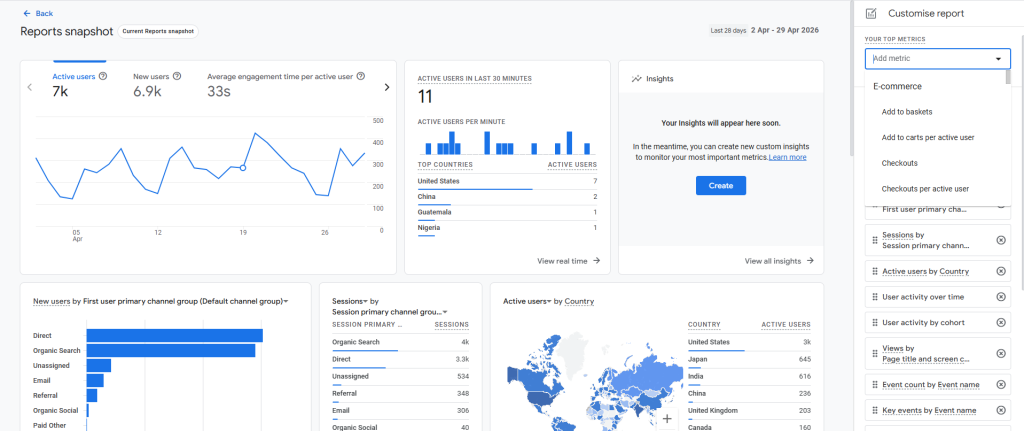
Now that GA4 has your custom calculated metric and cost data, you’re able to show ROAS in your reports!
There are two ways to do this: as explorations or in standard reports.
Explorations
- Click 📈 Explore in the left-hand navigation pane
- Start a new exploration or open an existing one
- In the Variables column, click the + next to Metrics
- Click the Custom tab and find your custom ROAS metric
- Select the metric and click Import
- Drag your ROAS metric from the Variables column to the Values field in the Settings column
- Use breakdowns such as Session source/medium to analyse performance
Standard reports
- Click 📊 Reports in the left-hand navigation pane
- Create a new report or open an existing one
- Under Report data, click Metrics and then Add metrics
- Select your custom ROAS metric and click Apply
- Drag that metric into position in the table
- Save your new report
Match conversions to campaigns with UTMs
What are UTMs?
In just 3 simple steps, you now know how to track ROAS in GA4 for UK health and wellbeing brands.
But how do you even get that paid media campaign data in the first place?
Well, remember earlier when we said…
…you must ensure source, medium, campaign and date exactly match your UTM parameters, otherwise cost and revenue won’t join correctly.
Those UTM parameters – or ‘Urchin Tracking Modules’ – are short text codes that you add to the destination URLs linked in your ads.
When someone clicks an ad and reaches your landing page, those UTMs give you information about the campaign that sent them there.
That way, you can assess which ads are most effective at driving traffic and conversions, and adjust your creative, messaging or bidding/budgeting strategy to optimise performance.
How do UTMs work?
First, you need to determine which page your campaign will link to.
But you don’t want to just use www.excellentsupplements.co.uk/vanilla-protein-powder. Otherwise, you won’t be able to connect your ad campaigns to performance and later ROAS.
Instead, you need to include UTMs such as:

That new URL might look quite confusing. But it’s really quite simple when you break it down:
- ?: Separates your main URL from your parameters to tell web servers that they’re not part of the file location
- &: Separates each parameter
- utm_source: The referring source (e.g. Instagram)
- utm_medium: The type of digital marketing the user interacted with (e.g. paid social)
- utm_campaign: The name of your paid media campaign (e.g. Summer flash sale)
- utm_term: The paid keyword that triggered the ad to appear (e.g. protein powder)
- utm_content: The specific ad variation the user clicked, useful for comparing how the same creative performs in different places (e.g. Instagram Stories)
Every tracked URL needs a source, medium and campaign. But whether or not you use term or content is up to you.
Top tip: Always use the same UTM naming conventions
The most important thing to remember when using UTMs for tracking ROAS in GA4 is that you always use the exact same naming convention. That means the same wording, spelling and capitalisation every single time.
You might know that utm_source=Facebook and utm_source=facebook are supposed to mean the same thing. But GA4 doesn’t. So it’ll split your campaign into multiple rows in your reports, making it much harder to see your full ROAS.
GDPR, consent mode and accurate ROAS data
UTMs are essential for accurately tracking ROAS in GA4. But your campaigns must still satisfy UK health and wellbeing paid media compliance.
Under the General Data Protection Regulation (GDPR), you must give website visitors the chance to opt out of tracking. Unfortunately, this can impact your ROAS data.
For example, let’s say your goal is to generate £100,000 in paid media revenue every month.
In reality, you might be on track to meet that goal. But if only 50% of people accept your tracking cookies, GA4 might only report £50,000 in ad revenue.
This means your ROAS will show as only half of the real figure, skewing the accuracy of your metric tracking and reporting.
But even if customers reject your cookies, you can generate more complete and directionally reliable campaign data by using GA4’s consent mode.
How does GA4’s consent mode work?
In consent mode, GA4 can use standard tracking for any user who accepts cookies.
But if they reject cookies, the platform uses machine learning and signals like device type, geography and behaviour patterns to estimate the missing data.
This gives you a more complete, reasonably accurate figure for calculating your true ROAS. And it ensures you comply with GDPR and other privacy regulations.
When Fueld starts managing your paid media campaigns, we can activate consent mode using Google Tag Manager and ad platform server-side tracking capabilities. That way, you get higher quality, more reliable data while still respecting user consent and privacy requirements. So you can confidently run compliant paid search and social ads without the hassle of setting up the tracking yourself!
Get in touch with us today to find out how we can make your paid media management simple.
How to track ROAS for offline conversions
When it comes to supplement sales, spa treatment bookings and new fitness centre memberships, your paid media revenue will show up instantly.
But not all transactions complete this quickly. Customers might find out about medical weight loss programmes, wellness retreats or mental health services through your digital ads, then convert much later after more research or a free consultation.
In these cases, GA4 won’t have the data it needs to link online leads to offline conversions. So even if it registers 100 ad clicks, you won’t know how many actually followed through on a purchase.
But that doesn’t mean you have to stay in the dark.
It’s quite easy to import offline conversion data into GA4, just like with your cost data CSV file.
Or, to make the process simpler, you can use a Customer Relationship Management (CRM) platform to track your leads, who converts and the value of their purchase internally. You could even connect a CRM like SalesForce or HubSpot to GA4 to funnel that information back in.
That way, you can match your original online lead to the final offline sale. So while GA4 alone might register 100 ad clicks, your CRM could also show 10 conversions at £1,000 each for a total of £10,000 in paid media revenue.
This ensures revenue is attributed to the correct online advertising campaign, giving you accurate ROAS data to guide your digital marketing decisions.
Case study: Improving paid media ROAS by 135%
The supplement industry is one of the largest and most competitive in the world. That’s why Fueld’s paid media expertise was pivotal in generating additional revenue for the US-based health and supplement brand Quicksilver Scientific.
When Quicksilver first came to us in 2025, they were struggling with a high number of overlapping, low-performing digital ad campaigns. So they asked us to simplify, refocus and optimise their paid media strategy while unlocking even more growth.
By streamlining their campaign structure, our team successfully reduced ad spend by 49% while also boosting revenue by 48%. This led to a massive 135% improvement in paid media ROAS!
Read our full Quicksilver Scientific case study to find out more and see how we can help you maximise your digital advertising profits.
Get clear visibility of your paid media ROAS with Fueld
Understanding how to track ROAS in GA4 for UK health and wellbeing brands is essential for evaluating the success of your paid media campaigns.
But just knowing the numbers isn’t enough. You need an experienced, talented and proven paid media team to help you boost ROAS as high as possible.
At Fueld, we have a history of transforming business growth with online ad campaigns that significantly boost sales, customers and market share. We track every campaign carefully, making sure to stay within regulatory compliance obligations and ad platform rules. And at the start of each month, we send you a clear report showing the revenue generated from our paid media strategy.
Contact us today to find out how we can help your brand grow.
More from Fueld



About the Article
- Written by Russell
- May 06 2026
- Paid search